
Firmware upgrades
Make a new firmware or software version available to your customers, and let them install it from Xyte.
A firmware upgrade in Xyte is a command that carries a file. You upload the new version as a model file, and your customers run your upgrade command on their devices. Xyte sends the file's download link to the device, and the device installs it.
Four things need to be in place:
- An upgrade command on the model, set to require a file.
- The firmware file, uploaded to the model's Files tab.
- The file published to your customers, after you test it on lab accounts.
- Device firmware that reports its version and handles the upgrade command.
1. Add an upgrade command
When you create a model: under Suggested commands, keep Upgrade Firmware checked. This adds a Firmware Upgrade command that requires a file of type firmware.
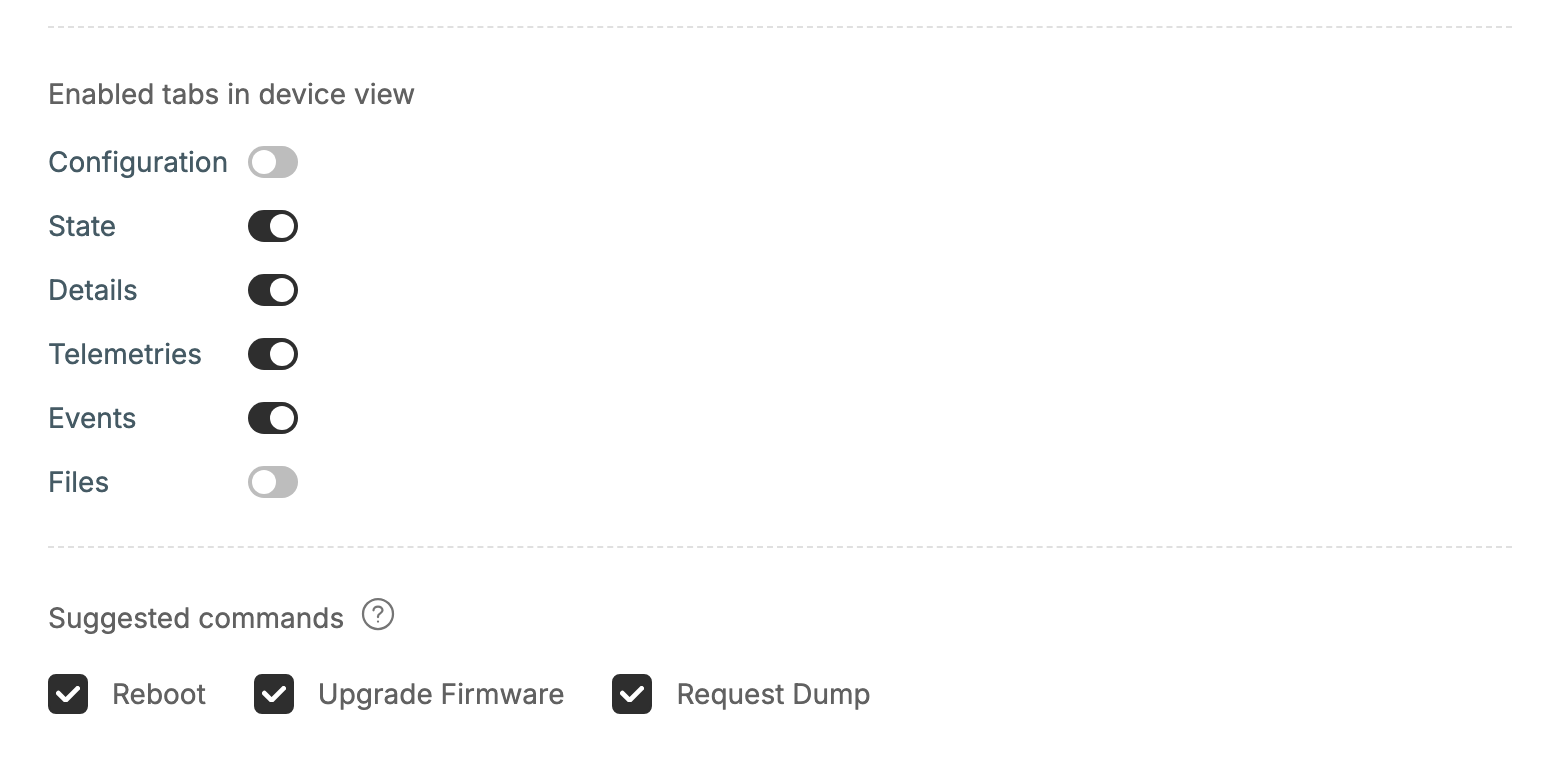
In Create New Model, Upgrade Firmware under Suggested commands is checked by default.
On an existing model, or to use your own command:
- Go to Models, open the model, and select the Supported Commands tab.
- Add a command, or edit an existing one.
- Check Requires file, and enter the Required file type, for example
firmware. - Set Timeout (in seconds) long enough for the whole upgrade, including the reboot. While a command is running, the device isn't marked offline when it stops responding.
- Make sure the command is active, so customers can see it.
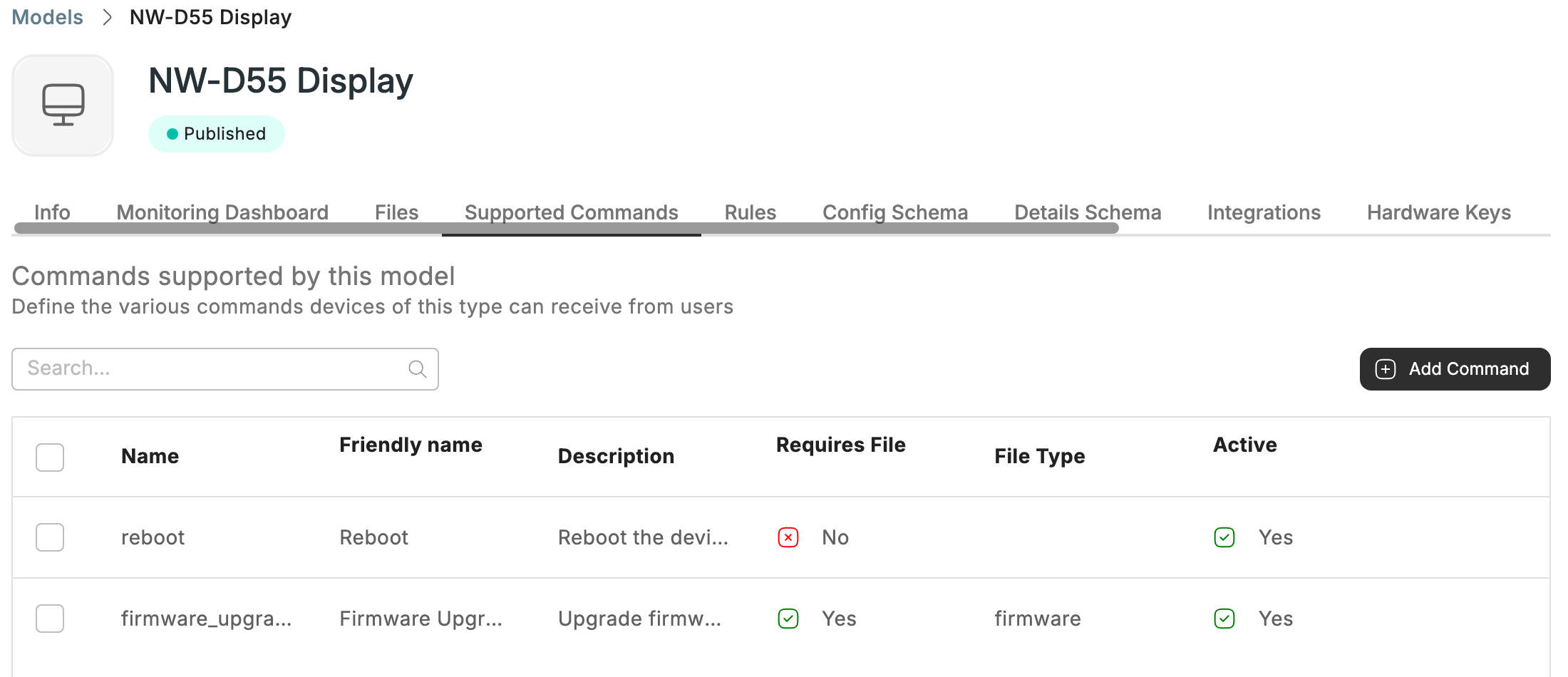
The Supported Commands tab: Firmware Upgrade requires a file of type firmware and is active.
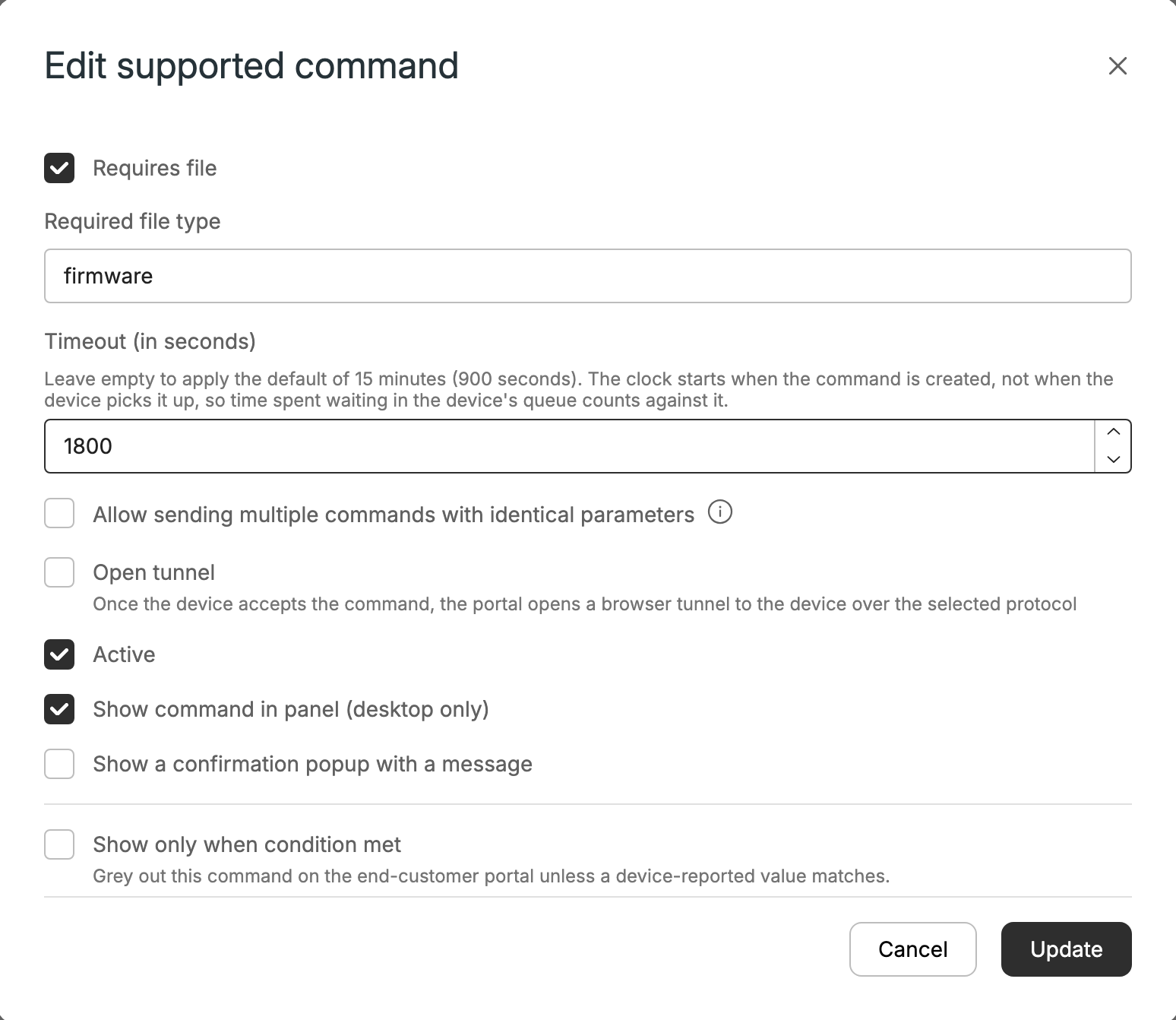
The command form: Requires file, Required file type, Timeout (in seconds) and Active.
See Supported Commands for all command fields.
2. Upload the firmware file
- On the model, open the Files tab and click Add File.
- Upload the file, or add a link to a file you host yourself.
- Fill in the fields. See Files for each one. For an upgrade, these matter most:
- File Type: must exactly match the command's Required file type,
firmwarefor example. Only files of that type appear when a customer runs the command. - Version: required. Use semantic versioning, such as
2.4.1. Customers see the newest version first, and Xyte uses it to tell them an update is available. - Public Notes: shown to customers as the Manufacturer's note when they pick the file. Use it for release notes or warnings.
- Checksum and Signature: sent to the device with the download link, so the device can verify the file before installing it.
- File Type: must exactly match the command's Required file type,
- Leave Available for lab accounts only on for now.
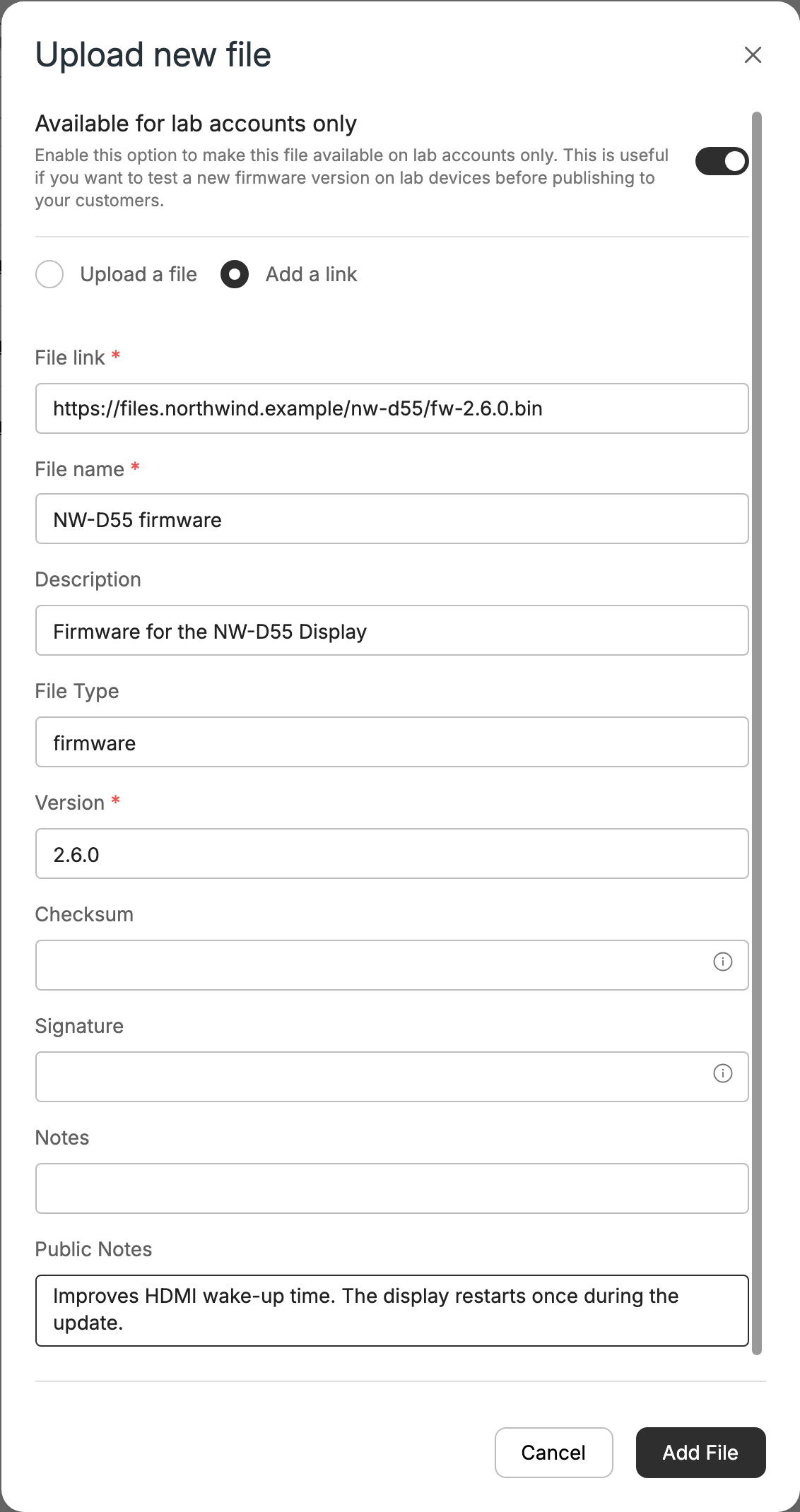
The Upload new file dialog: Available for lab accounts only is on, File Type is firmware, and Version is filled in.
The version must be uniqueA model can't have two files with the same name and version. Upload each release under a new version number.
3. Test on lab accounts, then publish
A file set to Available for lab accounts only appears only to lab organizations and lab devices. The Availability column shows Lab only.
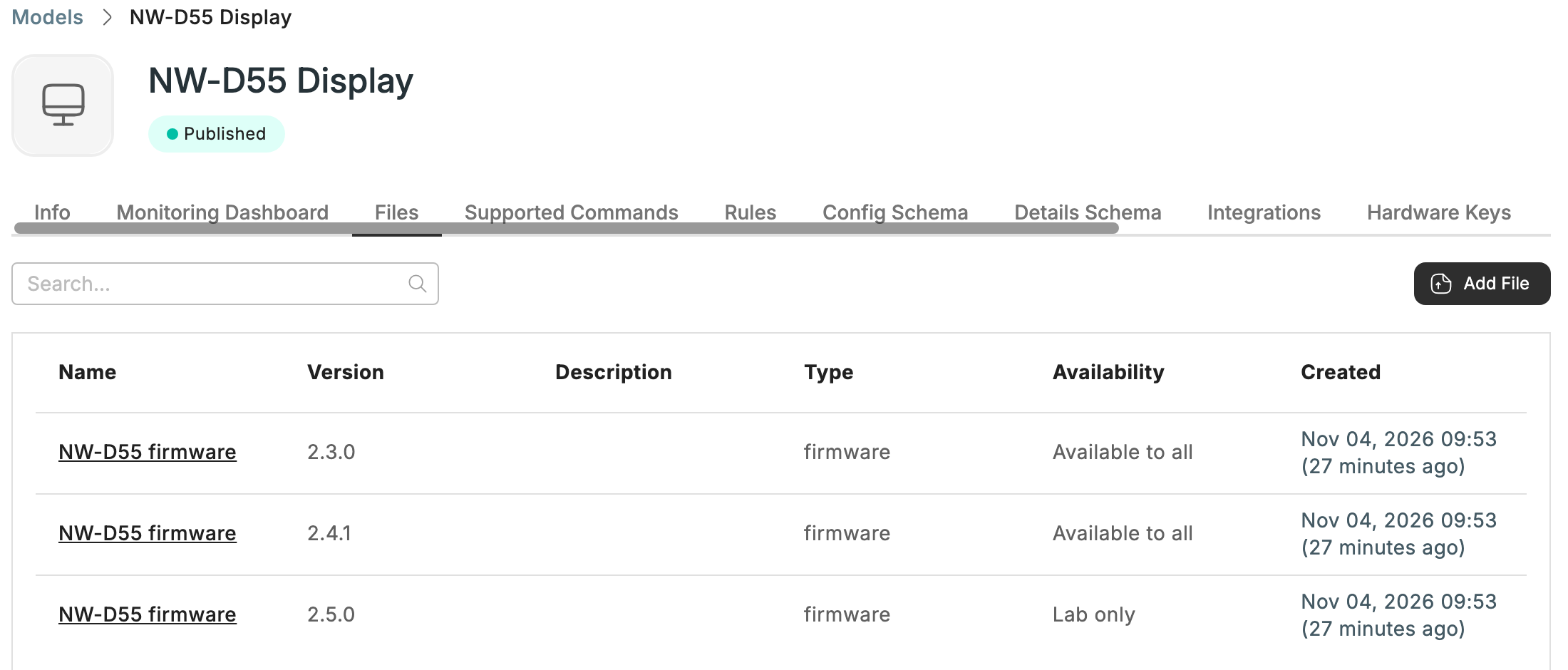
The Files tab: 2.5.0 is still Lab only, the earlier versions are Available to all.
- Claim a test device into a lab organization and run the upgrade command on it.
- Check that the device installs the file and reports the new version.
- In the model's Files tab, open the file's menu, choose Change availability, and confirm with Yes, publish.
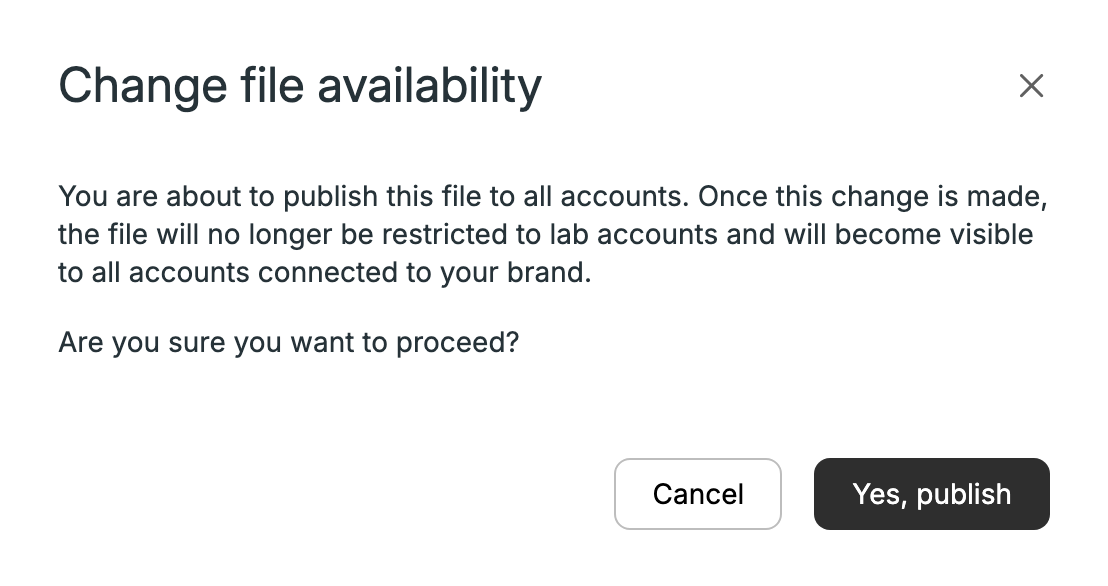
Change availability asks you to confirm before the file is published to all accounts.
The file now shows Available to all. Every customer with a device of this model can install it.
4. What your device firmware needs to do
Report its version. Send the running version in firmware_version with Update Device. Customers see this value. Xyte compares it to your newest published file to show an available update, which only works with semantic versions.
Learn about new versions (optional). Get Device Info returns latest_firmware (version and file id). MQTT devices also receive a message on v1/device/{DEVICE_ID}/firmware whenever the latest firmware for the model changes (see Subscribe Topics). Lab devices are told about lab-only files, and other devices only about published ones.
Handle the upgrade command. When a customer runs the command, the device gets it through Get Command. Its parameters include the file's url, version, checksum and signature, plus any custom fields you defined. The device should:
- Download the file from
url, and verify it withchecksumorsignature. - Install it and restart if needed.
- Report the result with Update Command, then report the new
firmware_version.
Devices can also list the model's files themselves with Get Files. Firmware that isn't published yet is returned only to lab devices.
What your customers see
Customers see each device's firmware version, and a New version available status when your published file is newer. They install it by running your command and picking the file. They can also pick Custom file and upload a file of their own, for example a version your support team sent them. See Update a device's firmware on docs.xyte.io.
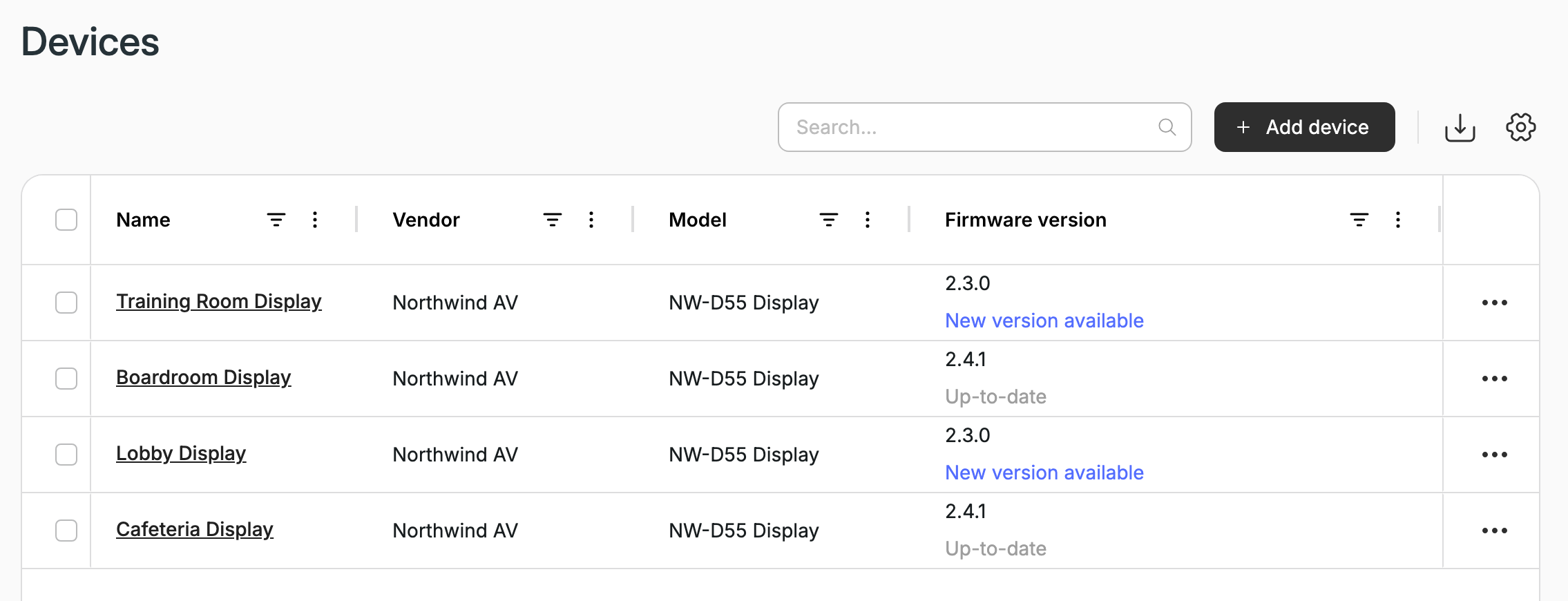
What your customer sees: devices behind your newest published version show New version available.
Updated about 3 hours ago