Monitoring Dashboard

Overview

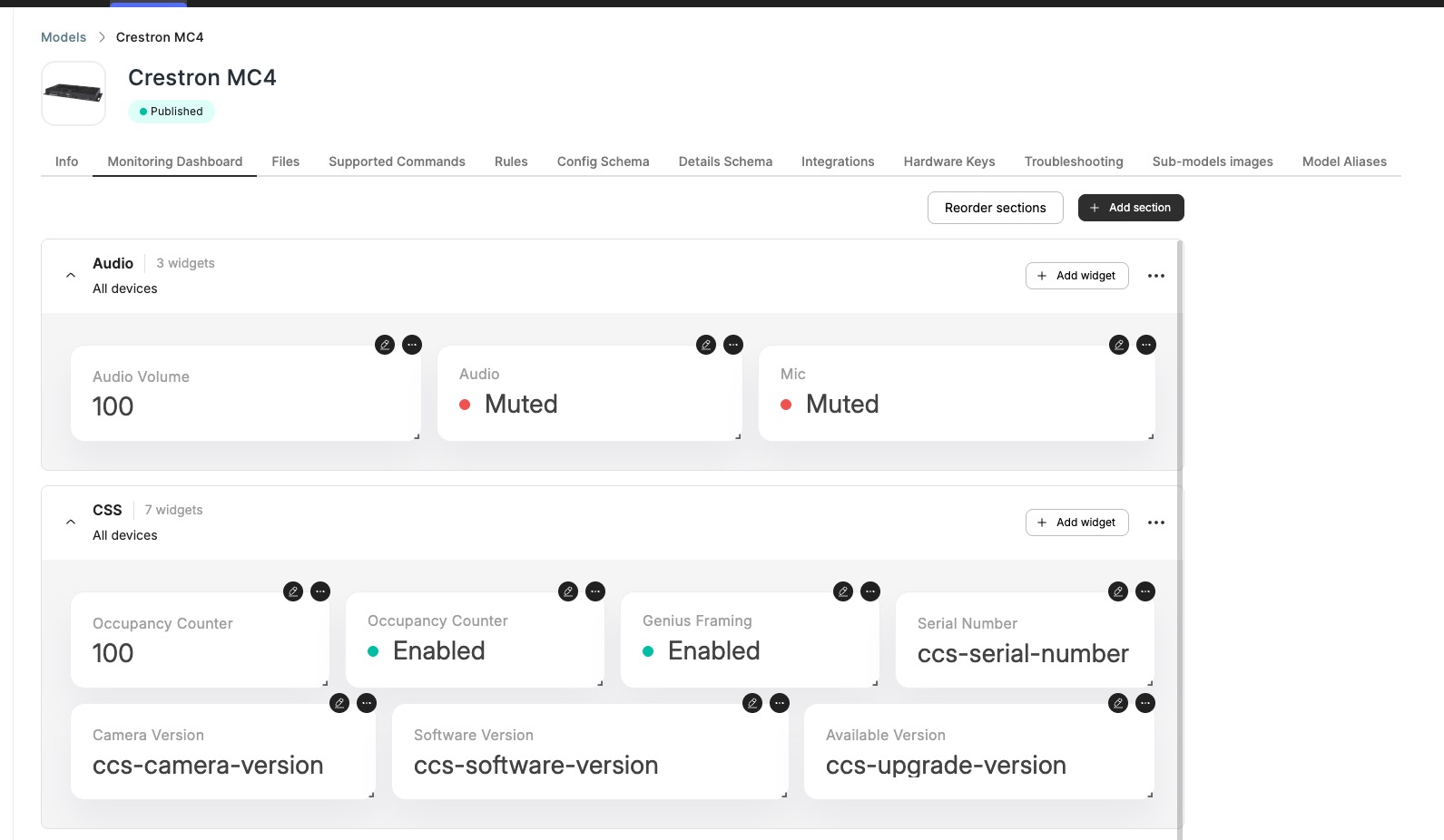
This tab allows OEMs to define the visual dashboard shown on the End Customer portal.

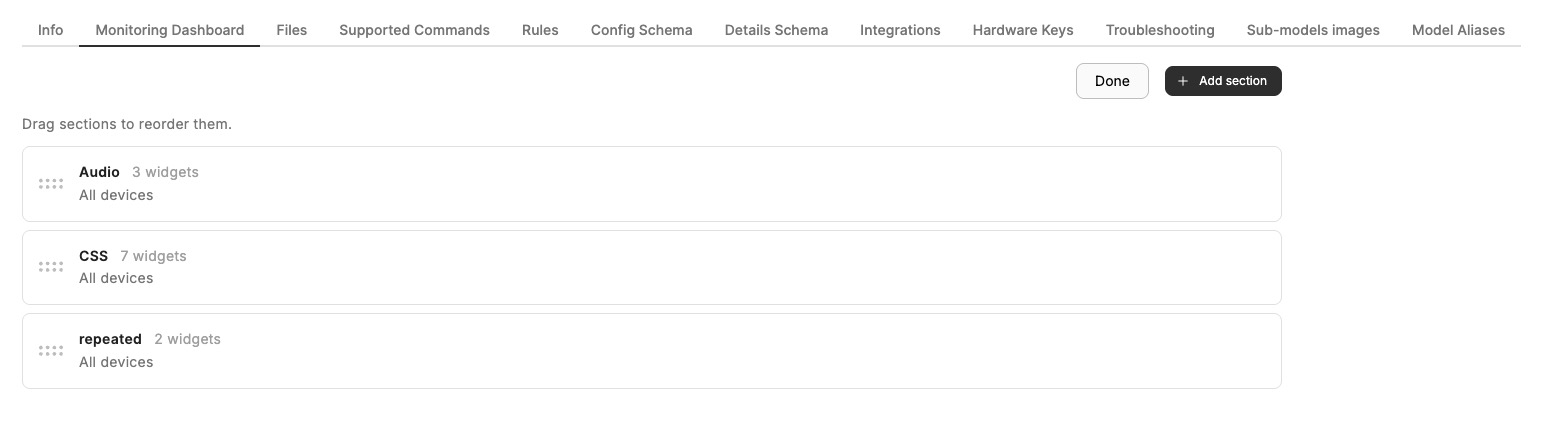
The dashboard is built of multiple "Sections". Each section can be static or conditionally shown based on device capabilities (e.g. only show "Noise Cancellation Widgets" if that feature is enabled on the device).

Sections

To add a section, click on the "Add section" button on the top right.

  • Section name - General section name.
  • Condition type - Controls when this section is shown to End Customers. See Condition types below.

Condition types

Each section can either always be shown, or be gated on a value somewhere on the device. When gated, the section is shown only when the value at the configured Data source path is truthy (i.e. true, a non-empty string, a non-zero number, or a non-null object); any other value — including false, null, 0, an empty string, or the path not being found — hides the section.

All devices

The section is always shown. No path or value lookup is performed.

Configuration or Details

The section is gated on a value resolved from a path you specify in the Data source path field. The path always starts with one of three roots, and the dot-notation after the root is interpreted differently depending on the root.

Path prefixReads fromHow dots after the prefix are interpreted
config.<...>The device's Configuration JSONNested keys — the path is traversed object by object.
details.<...>The device's Details JSON (see Data Types)Nested keys — same traversal as config.
state.<key>The device's reported State (latest Telemetry)Treated as a single literal key on the State object. State is a flat map — telemetry key names may themselves contain dots, and there is no nested traversal.

config.<path> — traverse the device's Configuration JSON

The path is followed key by key into the device's Configuration JSON. The section shows when the final value is truthy.

For example, the path config.settings.surroundSound.enabled matches a Configuration JSON of:

{
  "settings": {
    "surroundSound": {
      "enabled": true
    }
  }
}

If any intermediate key is missing, or the final value is falsy, the section is hidden.

details.<path> — traverse the device's Details JSON

Identical semantics to config.<path>, but reading from the device's Details JSON instead. Useful when the gating value is supplied by an integration rather than by the device's own configuration.

Example: details.capabilities.has_remote_control matches { "capabilities": { "has_remote_control": true } } in the device's Details.

state.<key> — read a flat telemetry key

Whatever follows state. is taken as a single literal key on the device's State object. Telemetry keys are flat — they are not nested under each other even when they contain dots.

PathMatches a State ofDoes not match
state.input_active{ "input_active": true }{ "input": { "active": true } }
state.audio.muted{ "audio.muted": true } (one flat key with a dot in its name){ "audio": { "muted": true } }

If the device has not yet reported the key, or it has reported it as a falsy value, the section is hidden.

📘

state.* conditionals read the device's live State, which is only populated while the device is online. For values that should keep gating the section while the device is offline, mirror the flag into the device's Configuration or Details and gate on config.* / details.* instead.

Widgets

Each Section may contain multiple Widgets of different types.

To add a Widget, click on the "Add widget" button.

The Widgets are separated into a number of families:

  • Monitoring - Widgets that display information only.
  • Commands - Widgets that tie into "Supported Commands".
  • UI - UI only Widgets, for structuring.

Clicking any Widget will open its configuration parameters. Each Widget has their own properties but (almost) all rely on a few basic concepts:

  • Title - Title and other text to be displayed.
  • Telemetry - The key of the Telemetry send by a device to use for the value of the widget.